3D proposals & customer approvals

Help your customer reach a clear product decision.

Repeated explanations and scattered feedback can make a sales review harder to move forward. Bring your existing 3D model, scope and supporting visuals into one proposal so the customer can explore the product and tell you what needs to change.

Start this 3D sales workflow with an authorized model of the product you are proposing. Reuse the same model for website 3D and Studio images or video, then bring reviewed visuals into the sales conversation.

Start with a free Cadloom account. See plans and usage.
CADLOOM / PROPOSALSIllustrative example

Prepared for Example Customer

A clearer view of
your next product.

Illustration of an industrial pump in a Cadloom 3D viewer
01 / Explore

Review the model from every angle.

02 / Align

Check scope, details and next steps.

“Can we confirm the connection size before moving forward?”Example customer question · fictional

Evaluate one real opportunity

Make the next decision explicit.

State what the customer is being asked to review. Add the model, scope and open questions, then share the intended saved version. Evaluate useful feedback and your preparation effort separately from orders and payments.

Track preparation time, explanation time and review rounds for one comparable opportunity. Keep customer decisions, orders and payments separate. Use the proposal evaluation checklist →

See the customer review · 49 seconds

From product questions
to a clear next step.

See how model, scope and customer feedback come together in one review. Start with an authorized 3D model of the product you are proposing.

Help customers reach a clear product decision

Watch a customer explore an existing 3D model, review the scope, draft feedback and open the approval step. Illustrative chair proposal with fictional details; no real customer approval is submitted.

Watch here with transcript →Watch on YouTube ↗Loads YouTube when you press play; YouTube receives connection data.
Read the video transcript

Scattered files can mean another round of explanations. Give your customer one clear product proposal. Already have a 3D model? Bring it into a Cadloom proposal so your customer can explore the product from every angle. Put the scope and open questions beside the product. Make it clear what needs a decision. The invited customer can keep questions and change requests connected to the shared version. When ready, they can review and approve that version. Contracts, engineering checks, orders, and payments remain separate. Reuse your model for website 3D and Studio images or video. Review generated visuals before using them. Start with one customer conversation. Explore a sample proposal at cadloom.com/3d-proposals.
The chair recording and pump example below are separate demonstrations. Studio reuse is introduced in this recording; see the Studio walkthrough below for that workflow. A proposal response is separate from a contract, order or payment.

For products that need a conversation

A file shows the design. A proposal explains the offer. Bring them together so your customer can ask a useful question instead of searching through attachments.

ManufacturersFabricatorsProduct suppliersSales teams

From presentation to decision

Make the next step clear.

Keep the important details alongside the product your customer is reviewing.

01

Explain with the model

Let buyers rotate and inspect the product while reading your scope. Add supporting images, video, tables and documents where an explanation needs more context.

02

Keep feedback in context

Share a saved proposal version, collect customer comments and respond in the same discussion. Turn a vague request into a clearer conversation about requirements.

03

Record the customer’s decision

Give the verified invited customer a way to respond to the shared version. Review feedback and activity before deciding how to move the project forward.

Explore the experience

A product. Its context.
One shared conversation.

This illustrative pump proposal uses an existing public 3D example. The project details are fictional; it is not a quotation or a live customer approval.

EXAMPLE CUSTOMER · PRODUCT EVALUATION

Pump selection review

Demo content

Rotate and zoom to explore. Open the standalone 3D example ↗

In a real proposal, the verified invited customer can comment or approve.Create your first proposal

A simple workflow

Build it once.
Review it together.

Start with the assets you already have. No code is required to assemble a standard proposal.

  1. Add the product and the story

    Choose an existing model, Studio image or video. Add text, a scope, tables and supporting documents. Use your own branding and arrange the page for the conversation.

  2. Preview and share a version

    Review the customer view, choose the invited email and link access, and set an expiry. The shared version stays fixed while you continue editing the draft.

  3. Resolve questions and move forward

    Review comments and the customer’s response. Clarify what changes, prepare a revised version when needed, and retain the context behind the decision.

The customer view

A question, a revision or a clear next step.

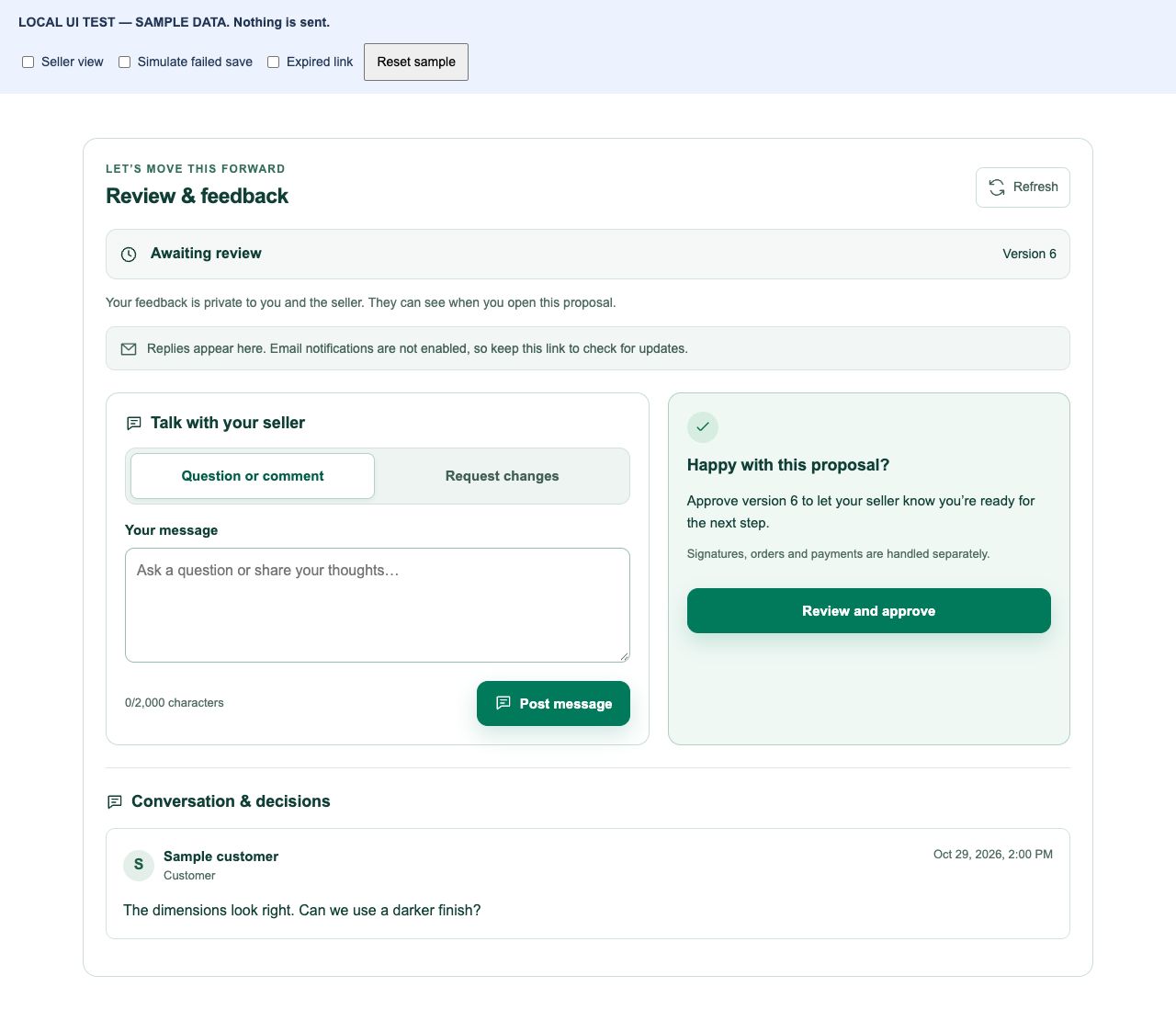
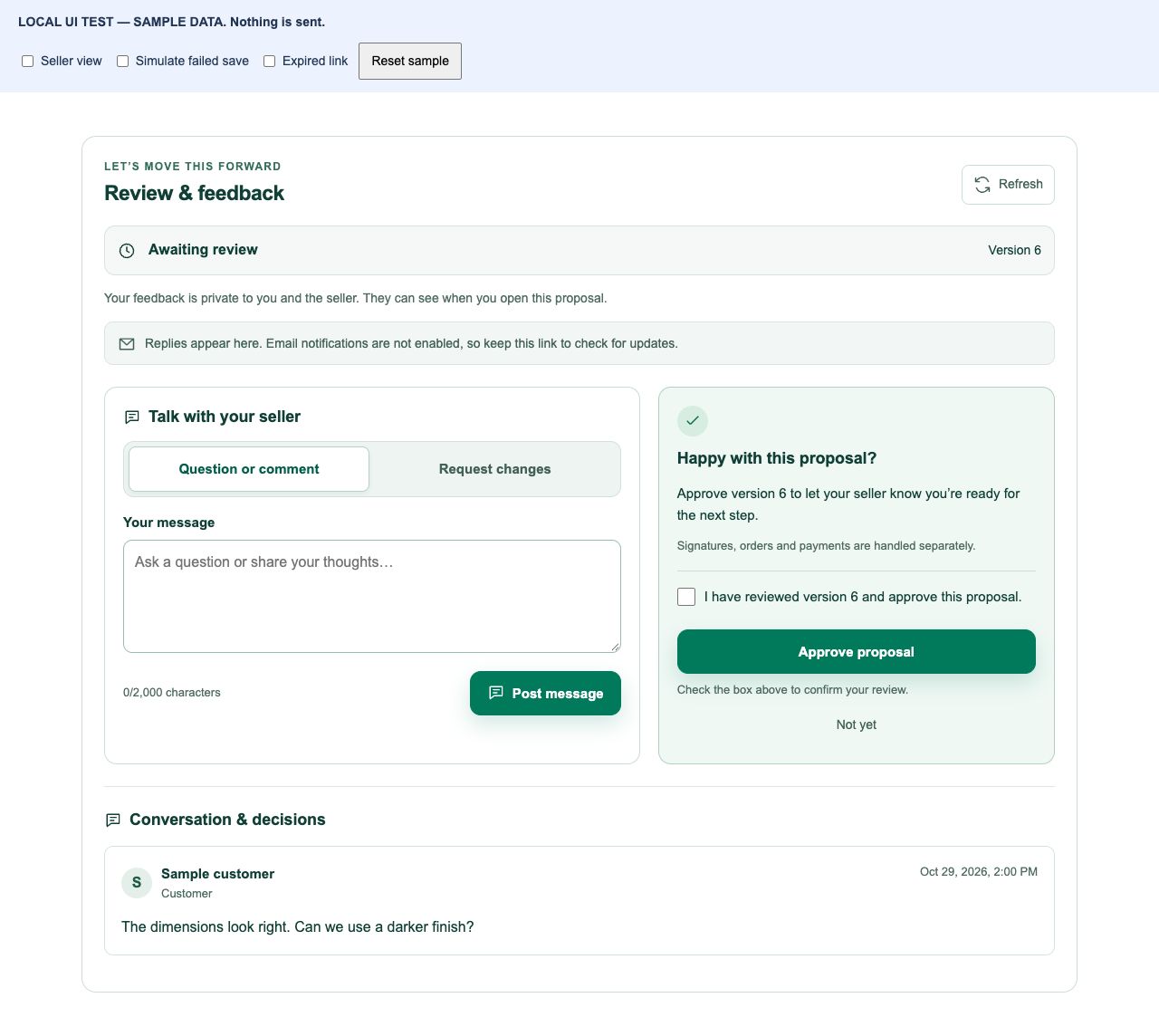
These screenshots show the actual Cadloom review component with fictional sample data, not a live customer proposal.

Sample customer feedback controls in Cadloom
1. Discuss the shared version. The verified invited customer can ask a question or request changes. Review access and expiry before sharing.
Sample approval confirmation for the shared proposal version
2. Confirm the intended decision. The customer reviews the version before approving. Signatures, orders and payments remain separate.

Read the complete 3D customer review and approval guide →

Two practical starting points

Match the review to the work.

Illustrative use cases, not measured customer results or engineering approval.

Manufacturer: product selection review

Present an assembly and explain the connections or layout under discussion. List duty requirements, dimensions and materials still to confirm. Collect questions before preparing a formal quotation.

Explore industrial product presentations →

Fabricator: scope clarification

Show the intended form with a written scope and supporting drawings. Separate the visual arrangement from dimensions, finishes, installation and price that still need agreement. Share a revised version after resolving questions.

Plan the review scope →

More value from the same model

From your website
to your sales conversation.

Use interactive website 3D to help buyers understand the product. Reuse the same authorized model for marketing images and video in Studio, then bring the useful assets into a proposal.

Keep your product presentation connected while evaluating the time and cost of preparing new creative. Review generated visuals for accuracy before sharing.

Supporting your sales conversation

Bring useful Studio visuals into the proposal.

Use reviewed images or video to explain the product alongside the model and scope. This existing video demonstrates Studio; watch the customer-review demo above for the proposal experience.

Put the same model to work in Studio

See an existing chair model and the Studio workflow for creating marketing images and video. Review generated visuals for accuracy before use.

Watch here with transcript →Watch on YouTube ↗Loads YouTube when you press play; YouTube receives connection data.
Read the video transcript

These product images and this video started with one 3D model. Your model can do more than sit in a design file. With Cadloom 3D Studio, compose your view, choose a creative direction, and create images and video from the model you already have. Refine your ideas, review the product details, and download the results for your next campaign. Put your 3D model to work. Explore Cadloom 3D Studio.

Before you start

Questions about
3D proposals.

What is a 3D proposal?

A 3D proposal brings an interactive product model together with the context a customer needs: images, video, project scope, supporting documents and next steps. In Cadloom, you can share a saved version and collect feedback and a customer decision against it.

Can I use my existing STEP files?

Yes. Import a supported STEP/STP, STL, 3MF, GLB or glTF file into Cadloom, review the processed model, then add it to your proposal. You can also build a proposal using images, documents or existing Studio assets without adding a 3D model.

Does my customer need a Cadloom account?

You choose who can view each proposal. Anyone-with-the-link viewing does not require sign-in. Invited-email-only viewing requires verification. Only the verified invited email can comment or approve; forwarding a viewable link does not grant those permissions.

What happens when I change a proposal?

A customer link contains the saved version you shared. Later draft edits do not silently change that version. Share the revised version when it is ready, and use the proposal activity and feedback to keep the discussion in context.

Is AI required to create a proposal?

No. You can assemble a standard proposal yourself using text, models, images, video and documents. Existing Studio visuals can be reused. Creating new AI images or video in Studio is a separate workflow with applicable credit usage; review generated visuals for accuracy before including them.

Is this a quotation calculator or an engineering sign-off tool?

Cadloom helps you present a product and record customer feedback and decisions. It does not calculate a manufacturing quote, replace engineering validation or automatically authorize production. Make the scope of a requested approval clear, and keep contractual and technical checks in your existing process.

Start with one customer conversation

Turn your next model
into a clearer proposal.

Add the product, explain the scope and give your customer a useful next step.